
Label sheet printing features
Set up your label stock, prepare the artwork and check the full sheet before printing. Your templates, designs and generated PDFs are processed on your device.
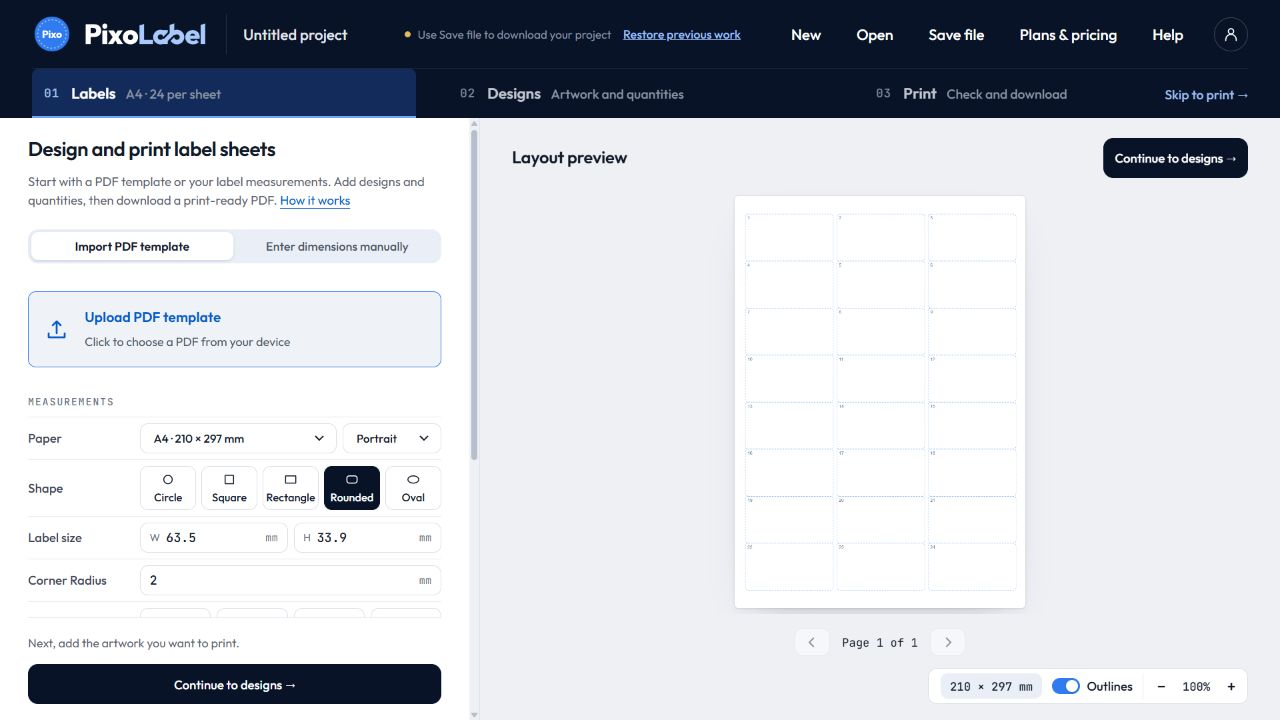
Start with the sheet you have
Import a blank PDF template and review the detected regular grid, or enter paper size, label dimensions, margins and gaps manually. Use standard or custom paper with repeating rectangle, rounded rectangle, circle or oval labels.
Upload finished artwork or create a design
Add PDF, PNG, JPG or WebP artwork. The editor includes text, images, shapes and QR codes, with text emphasis, spacing and curves. Align, group and arrange layers while the preview shows the label edge and available bleed.
Finished artwork can be printed directly. Original PDF artwork is retained as vector content in the PDF export; editor overlays are rendered locally.
Choose quantities and preview the whole job
Give every design its own quantity. PixoLabel allocates the labels across sheets, and you can review each page before downloading. Mark unavailable positions when starting with a partly used sheet.
Mix several designs on one sheet · Use the labels left on a sheet
Save the setup that prints correctly
Use a free calibration PDF to measure a printer offset, then save a named profile for the printer, tray and paper combination. Download a self-contained .pixolabel project to reopen your work later.
Local files, clear account requirements
File processing stays on your device. An internet connection is needed for email verification, export allowance checks and billing. Editing, previews and project saving are free. See free exports and subscription options.